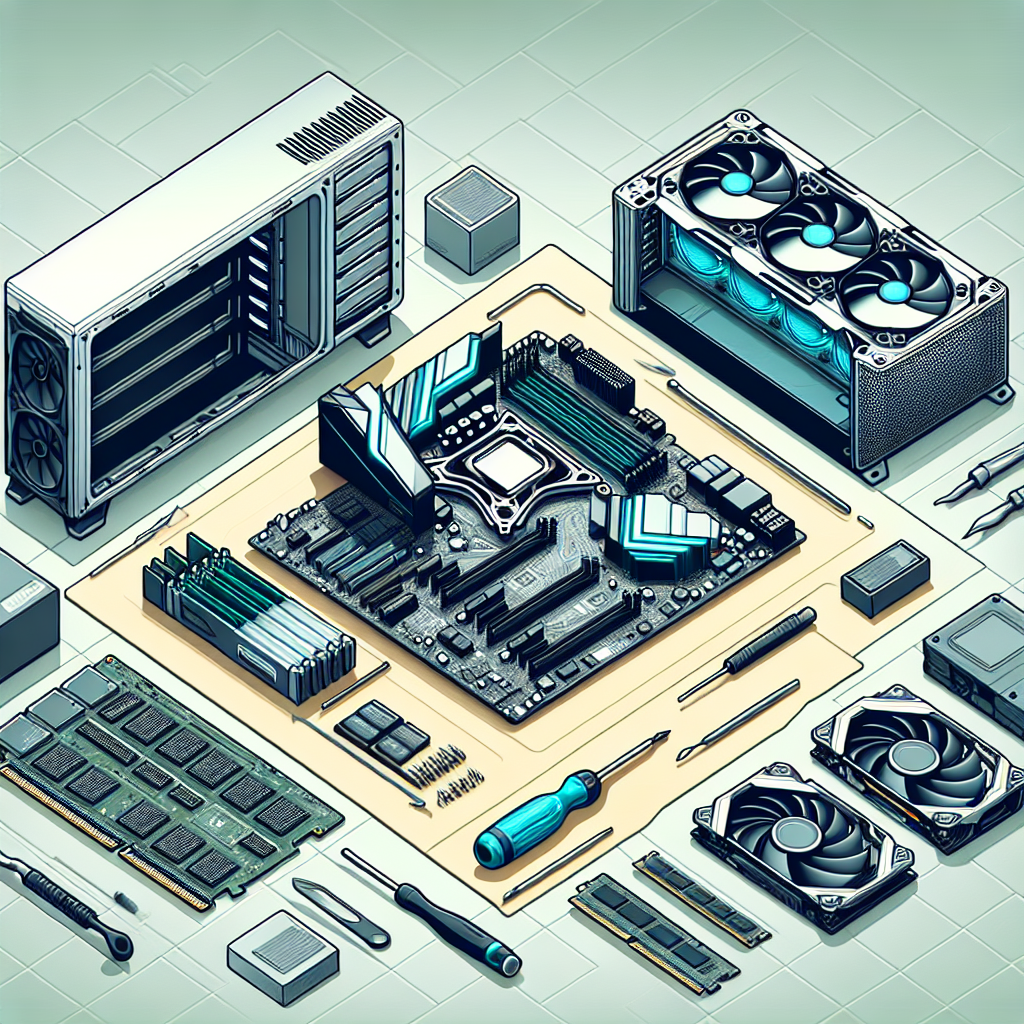
Introduction
Building your own gaming PC can be one of the most rewarding endeavors for any gamer. Not only do you get to tailor the performance to your specific needs, but you also gain a deeper understanding of how hardware works. In this tutorial, we will guide you through the entire process of building a gaming PC from scratch, ensuring you make informed choices along the way.
Choosing Your Components
The first step in building your gaming PC is selecting each of its components. Here's a breakdown of the main parts you'll need:
- CPU (Central Processing Unit): The brain of your PC, responsible for executing instructions and running applications.
- GPU (Graphics Processing Unit): Essential for rendering graphics and handling video output, crucial for any gaming rig.
- Motherboard: The backbone of your computer that connects everything together.
- RAM (Random Access Memory): Temporary memory that processes data for active applications.
- Storage: SSDs (Solid State Drives) and HDDs (Hard Disk Drives) are essential for your games and files.
- Power Supply Unit (PSU): Supplies power to all components of your PC.
- Case: The enclosure that houses all your components.
- Cooling Solution: Ensures that your CPU and GPU run at optimal temperatures.
Understanding Compatibility
Before you make any purchases, it’s crucial to ensure that all components are compatible with each other. Pay close attention to the following:
- Motherboard socket type and CPU compatibility
- RAM type (DDR4, DDR5) supported by your motherboard
- GPU size in relation to your case's dimensions
- Power requirements of your GPU and CPU relative to your PSU's wattage
Assembling Your Gaming PC
Once you’ve gathered all your components, it’s time to start assembling your gaming PC. Here’s a step-by-step guide:
Step 1: Prepare Your Workspace
Create a clean and static-free area for assembly. Gather tools like a screwdriver, anti-static wrist strap, and cable ties for organization.
Step 2: Install the CPU
Find the CPU socket on the motherboard, lift the lever, and carefully place the CPU, aligning the triangle indicator on the corner. Once placed, secure it back in place.
Step 3: Add RAM
Locate the RAM slots on the motherboard. Open the clips, align the notch on the RAM stick with the slot, and press down until it clicks into place.
Step 4: Mount the Motherboard
Install standoffs in your case for the motherboard to fit onto. Then, align and secure the motherboard with screws through the mounting holes.
Step 5: Install the GPU
Insert the GPU into the appropriate PCIe slot on the motherboard. Ensure it's snug and secure it using screws provided with your case.
Step 6: Connect Storage Devices
Mount your SSD/HDD in the designated drive bays and connect the SATA cables to the motherboard. Secure power connections from the PSU as well.
Step 7: Install the Power Supply
Place the PSU in its designated area, usually at the bottom of the case. Route the power cables correctly for easier management.
Step 8: Cooling Solutions
If you are using air cooling, attach the CPU cooler following the manufacturer’s instructions. For liquid cooling, follow the steps to install the radiator and pump accordingly.
Step 9: Cable Management
Organize your cables for a clean look and improved airflow. Use cable ties to bundle cables together, and ensure there are no obstructions for fans.
Step 10: Power Up!
Double-check all the connections, ensure everything is secure, and then plug in your PC. Power it up and enter the BIOS to check that all components are recognized.
Installing the Operating System and Drivers
After successful boot-up, it’s time to install your operating system. Here’s how:
- Create a bootable USB drive with your OS installation media.
- Insert the drive into your PC and boot from it.
- Follow the installation prompts to set up your OS on your primary storage drive.
Once your OS is installed, ensure you download and install the latest drivers for your GPU, motherboard, and any peripherals.
Testing Your New Gaming Rig
Run performance benchmarking tools to test out your new build. This will help you assess the performance and identify any potential thermal issues. Tools like 3DMark can accurately gauge how your rig performs under various loads.
Conclusion
Building your own gaming PC can be a complex but ultimately rewarding experience. By following this tutorial, you should be well-equipped to create a system that meets your gaming needs perfectly. Remember to keep your PC updated and maintain good cable management for optimal performance. Happy gaming!